 Doorstep
Getting started with Doorstep
A step-by-step walkthrough — with screenshots of every screen — from install to your first approved cold emails. Takes about ten minutes. You'll need an active Claude Pro or Max subscription; the installer sets up Docker for you.
Step 1 · Install with one command
Open a terminal (Mac: ⌘ + Space, type Terminal; Windows: search PowerShell; Linux: Ctrl + Alt + T) and paste:
curl -fsSL https://www.getdoorstep.app/install.sh | shIt sets up a Docker engine if you don't have one, downloads Doorstep, starts it, and opens the setup wizard in your browser automatically.
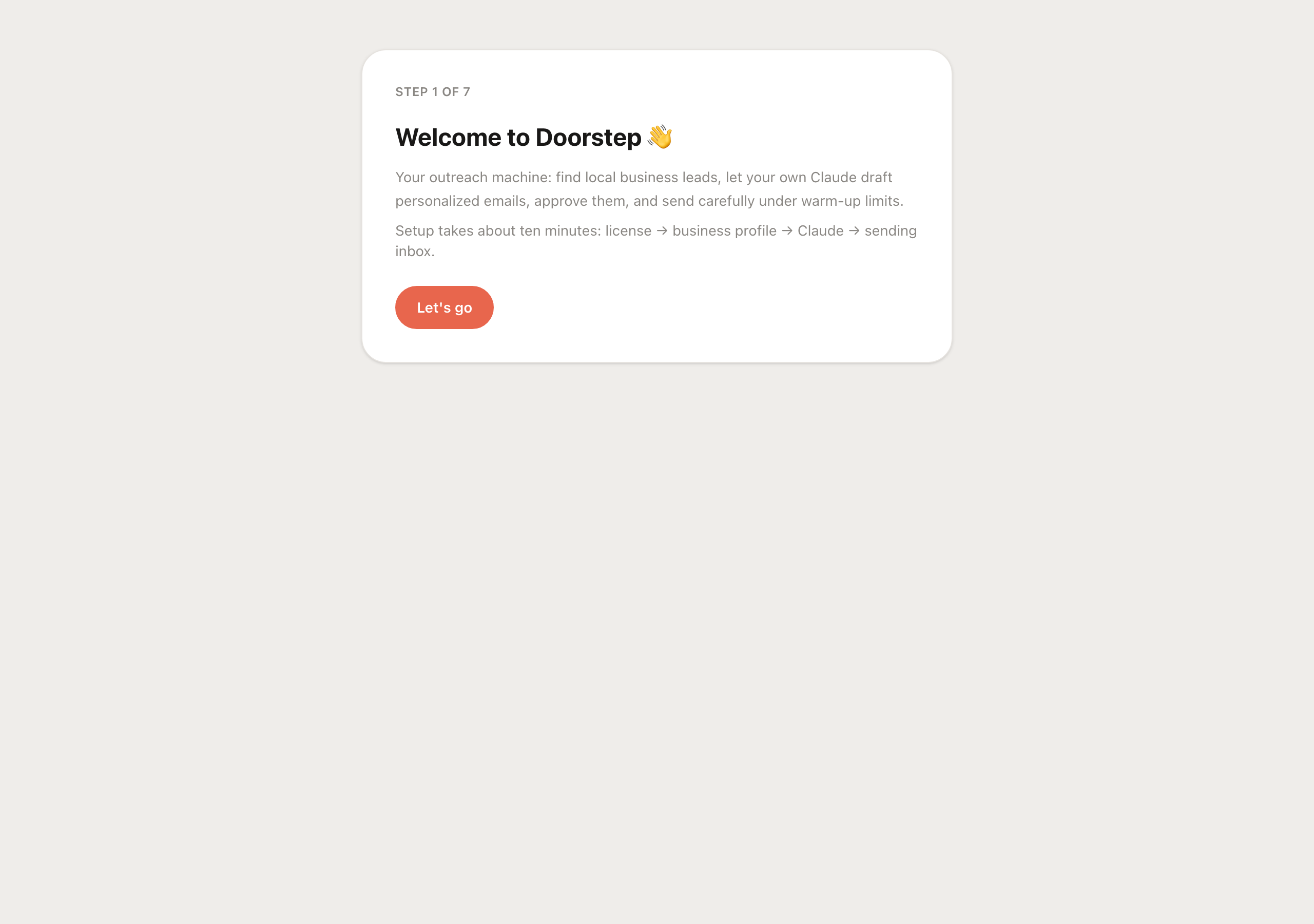
Step 2 · The setup wizard opens
You'll land on a welcome screen. Click Let's go and the wizard walks you through the rest — a progress counter (Step X of 7) keeps you oriented.
Step 3 · Connect your Claude
Drafting runs on your own Claude subscription. Click Copy next to the command, paste it into your terminal, and approve in the browser that opens — it copies your token to the clipboard automatically. Then paste it into the field and click Verify & continue.
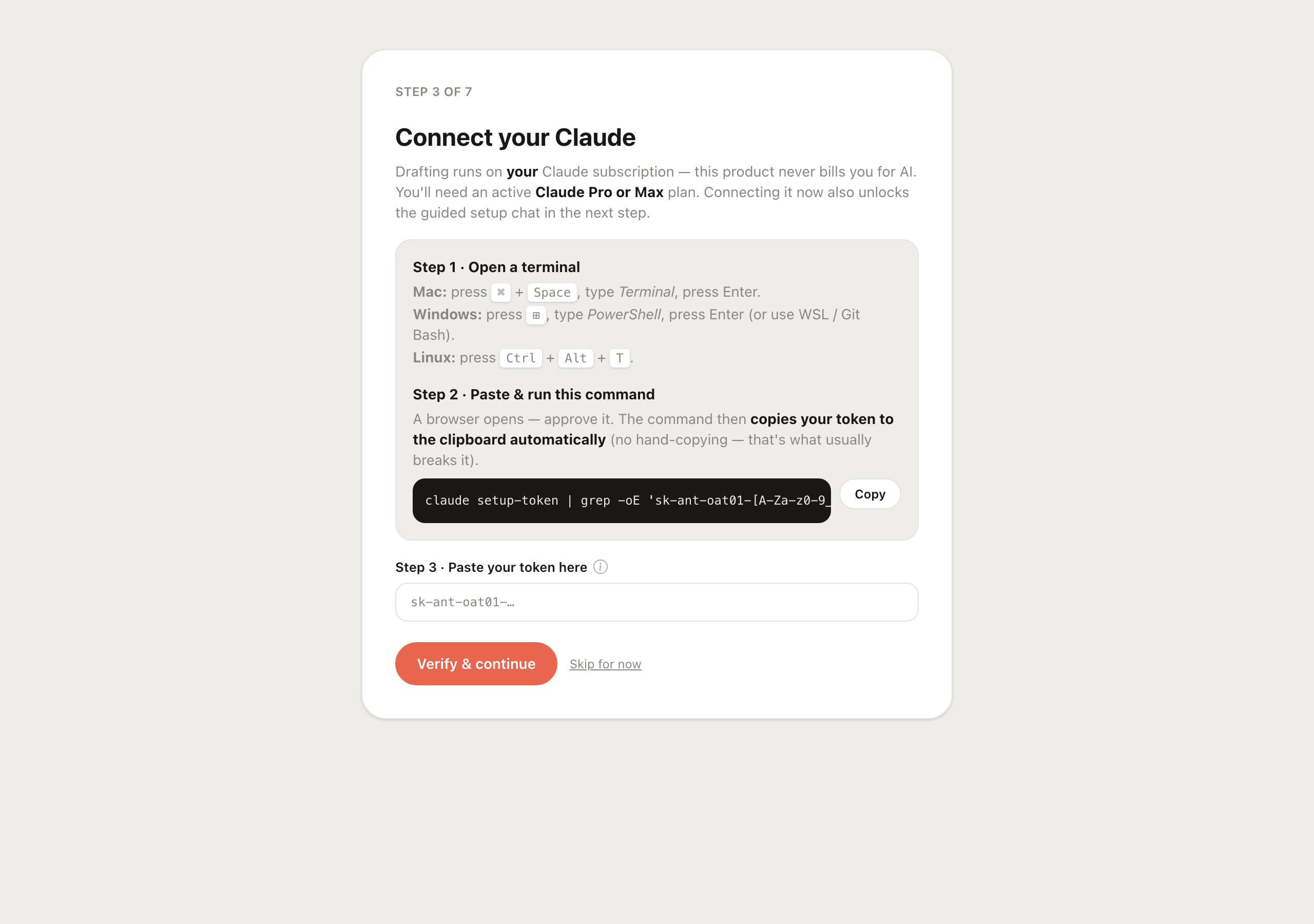
sk-ant-oat01-… string is easy to mangle, and a mangled token is the #1 setup snag. The copy command avoids it entirely.Step 4 · Describe your business
Click Start the chat and answer a few plain-language questions — your Claude writes the whole profile (voice, positioning, signature) for you. You can edit anything after. This profile is what every draft is written from.
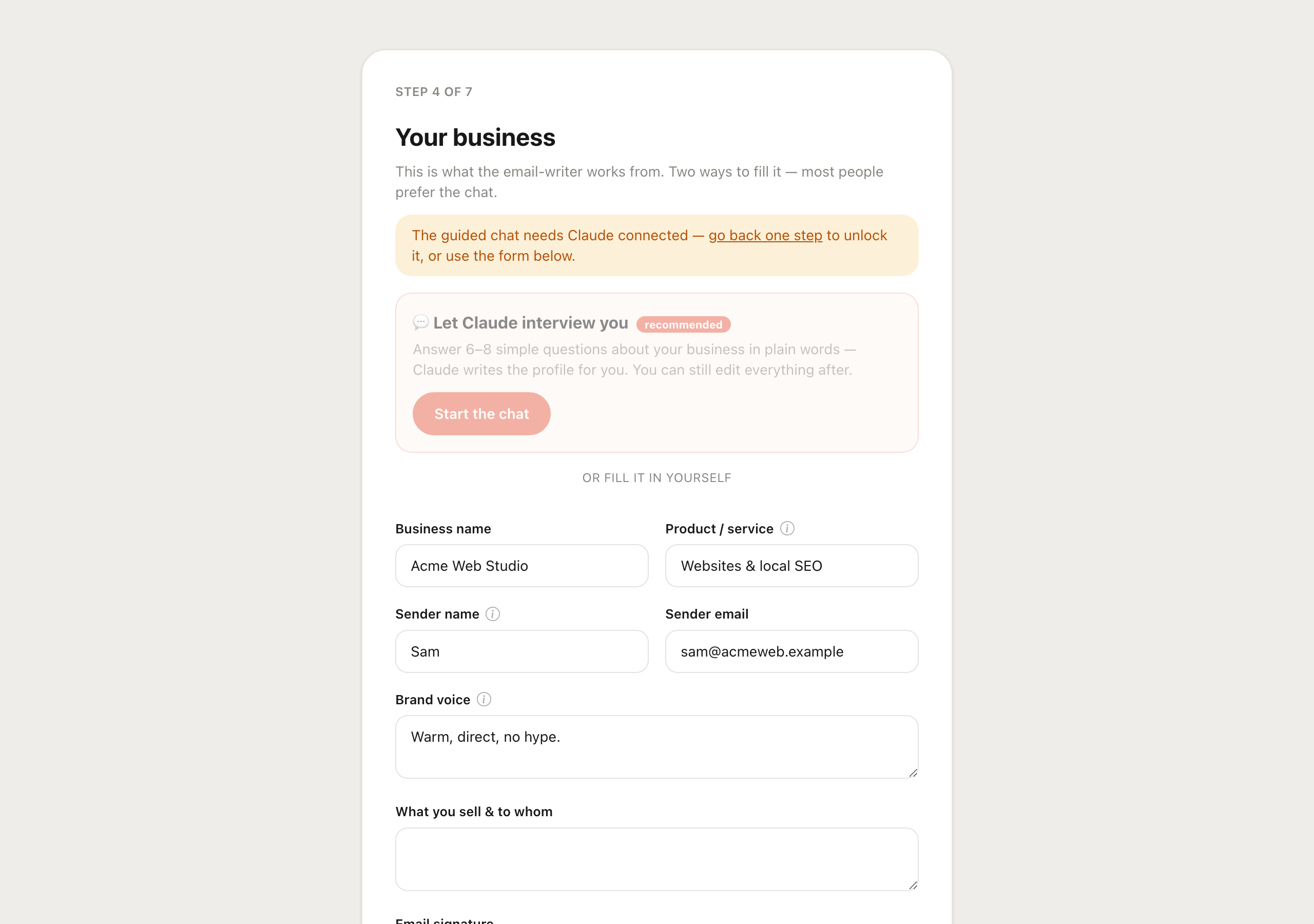
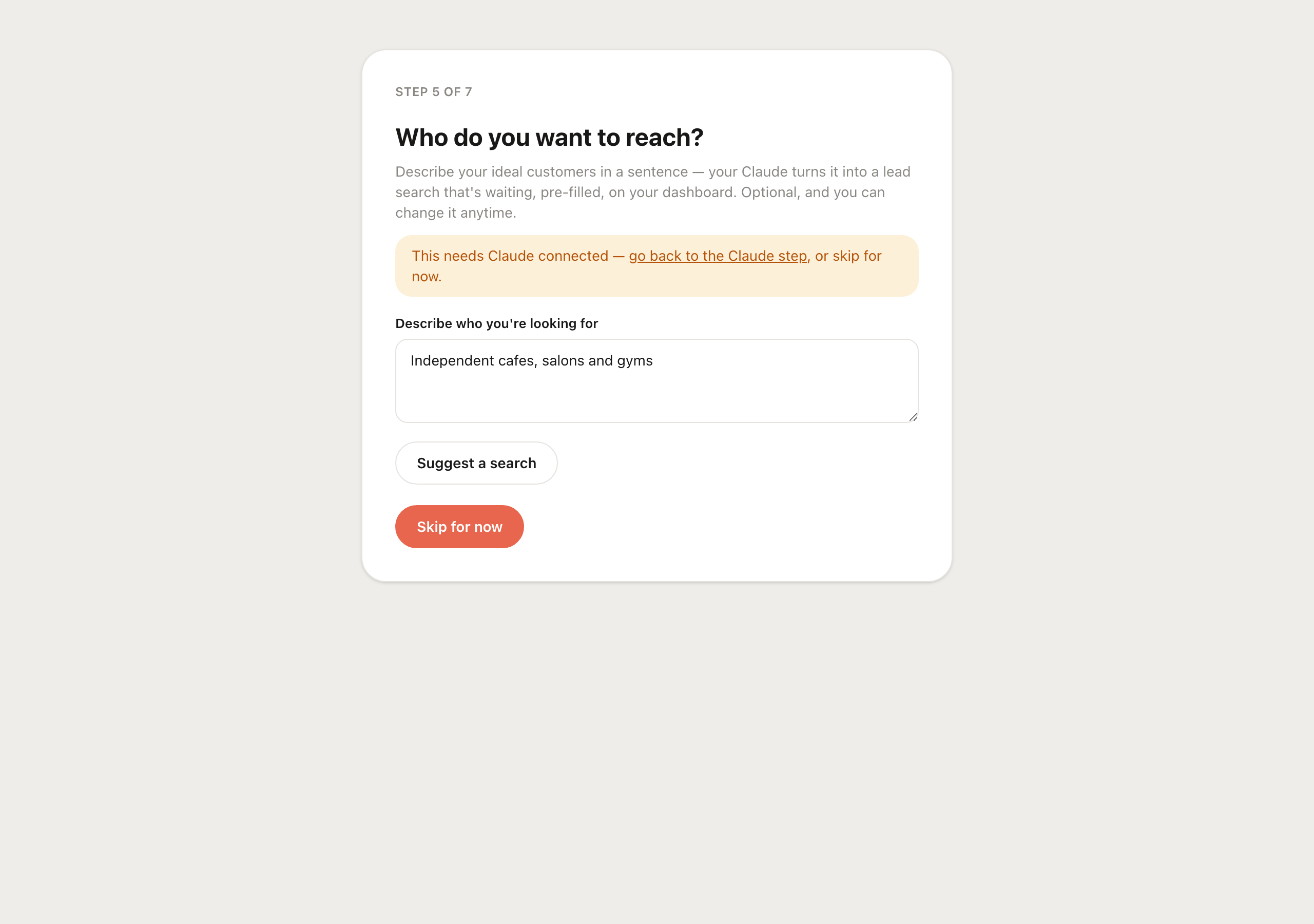
Step 5 · Say who you want to reach
Describe your ideal customers in a sentence and click Suggest a search. Doorstep turns it into a starting category + area, ready on your dashboard. (Optional — you can skip and set it later.)
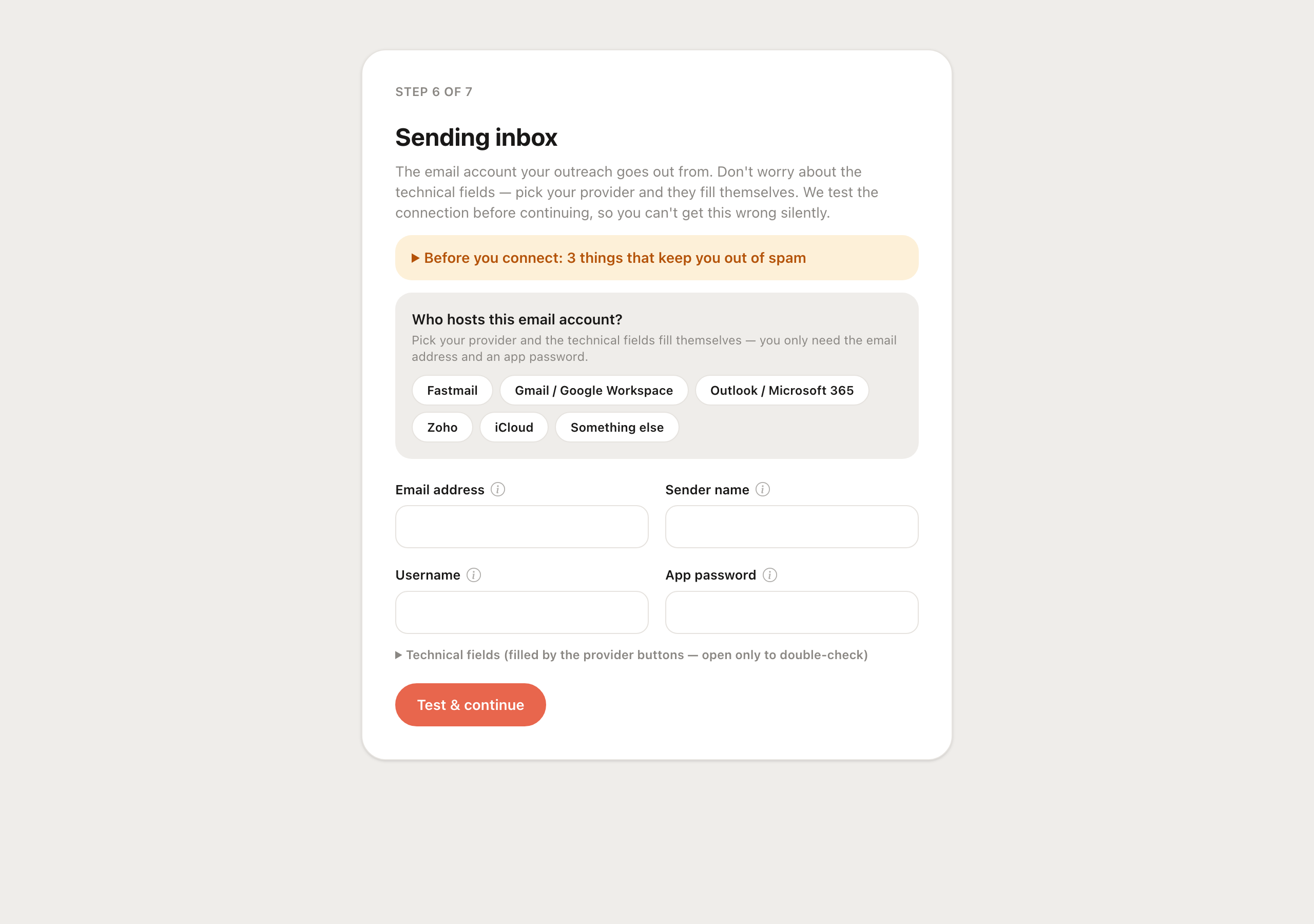
Step 6 · Add your sending inbox
Click your email provider — Fastmail, Gmail, Outlook, Zoho, iCloud — and the technical fields fill themselves. Enter your address and an app password (each provider's steps show right there), then click Test & continue. Doorstep verifies the connection before it lets you send, so you can't get it wrong silently.
Step 7 · Find leads and send
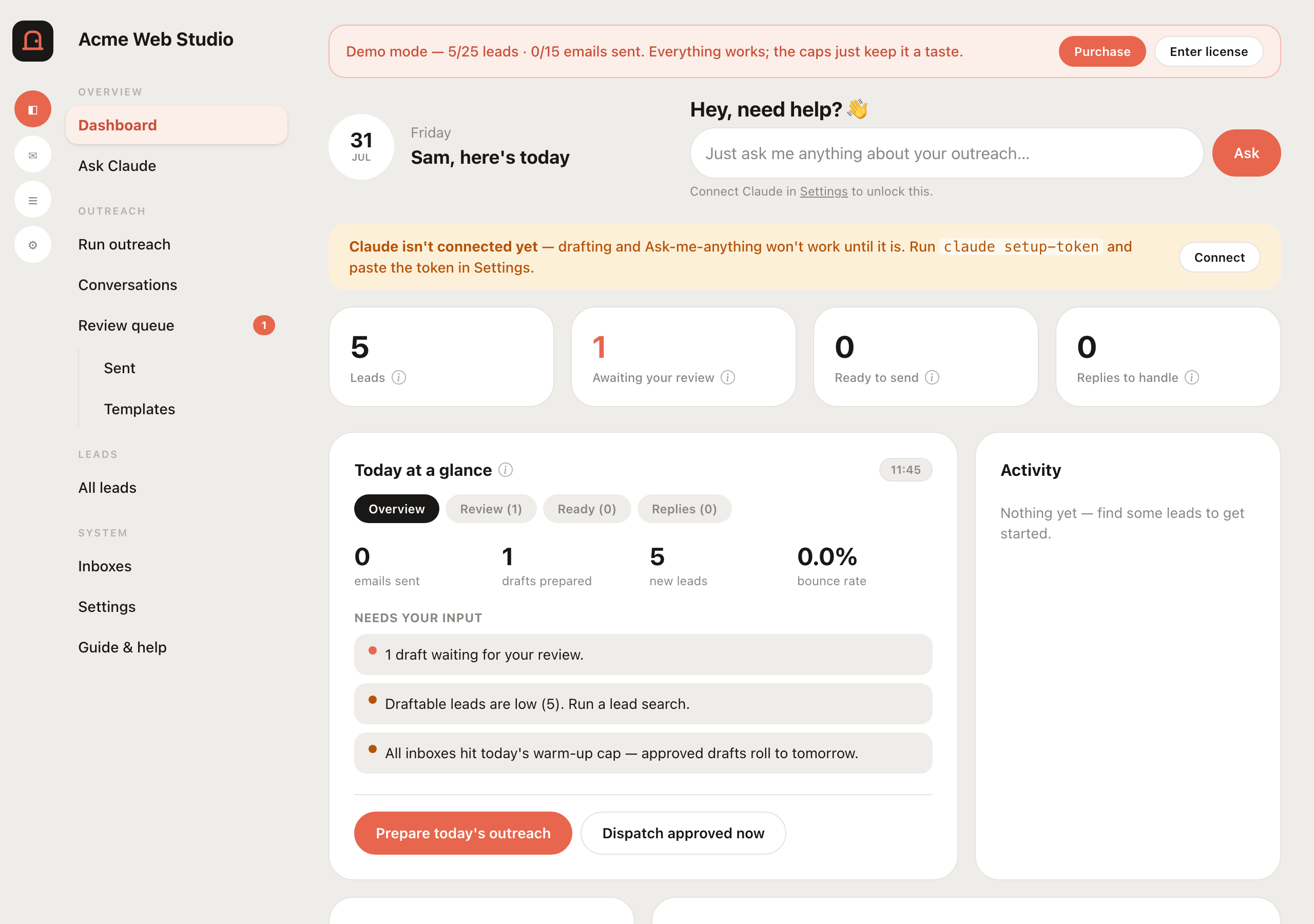
You're on the dashboard. Use Find leads to search a neighbourhood (or your saved target), then Prepare today's outreach to have Claude draft emails. Review them, approve a few, and they send inside your window under warm-up limits.
Updating
When a new version ships you'll see an "Update available" banner. Re-run the install command — it pulls the latest and restarts on your existing data. Nothing is lost.
Uninstalling
To remove Doorstep, run:
curl -fsSL https://www.getdoorstep.app/uninstall.sh | shThis removes the app container and image but keeps your data (leads, settings, license) in Docker volumes, so a reinstall brings everything back. To also permanently delete that data, the uninstaller prints the exact commands:
docker volume rm doorstep-storage doorstep-templates
rm -rf ~/.doorstep
Docker/Colima themselves are left untouched — remove those separately if you no longer need them.